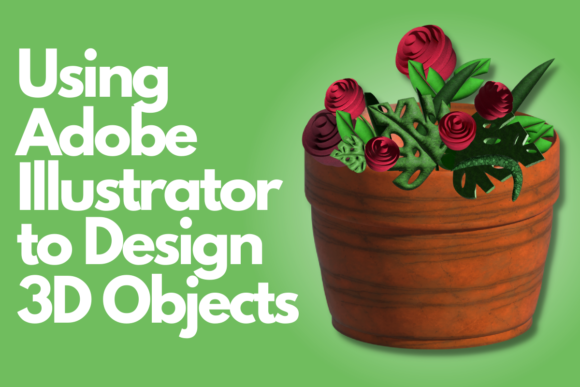
How to Use Adobe Illustrator for Creating 3D Objects
Adobe Illustrator has long been a go-to tool for designers, artists, and creative professionals looking to craft high-quality vector graphics. While it is best known for its 2D capabilities in designing logos, illustrations, and web elements, recent updates have expanded its functionality into the world of 3D design. With the right techniques and tools, you can use Adobe Illustrator to design 3D objects, adding depth and realism to your artwork without needing complex 3D software.
Why Use Adobe Illustrator for 3D Design?
Many people assume that creating 3D models requires specialized software like Blender or Maya. However, Adobe Illustrator offers a unique approach by allowing users to simulate 3D effects using vector-based tools. This makes it an excellent choice for those who are already familiar with Illustrator and want to incorporate three-dimensional elements into their designs without switching platforms.
The ability to design 3D objects within Illustrator also opens up new creative possibilities. You can generate realistic product mockups, stylized icons, or even architectural visualizations using only what’s available in this powerful vector application.
Key Features for 3D Object Creation in Adobe Illustrator
- Extrude & Bevel Tool: This feature lets you turn flat shapes into 3D forms by pulling them forward or backward to create depth. It’s perfect for crafting buttons, logos, or simple product designs.
- Rotate Tool for 3D Views: After applying an extrusion, you can rotate your object in real-time to view it from different angles. This helps you assess how the lighting and shading look from all sides.
- Materials and Lighting Options: Illustrator allows you to apply materials such as plastic, metal, or chrome to your 3D objects. Combined with adjustable lighting settings, you can achieve professional-grade results quickly.
- Depth Mapping: For more advanced users, depth mapping enables the creation of custom 3D surfaces by defining areas of elevation on a 2D image.
Real-World Applications of 3D Design in Illustrator
Using Adobe Illustrator to design 3D objects isn’t just a novelty—it has practical applications across various industries:
Product Mockups and Packaging
Designers often need to present products in a visually appealing way before they’re manufactured. By using Illustrator’s 3D tools, you can create mockups of packaging, bottles, or other items with accurate perspective and lighting. This is especially useful for businesses that want to visualize their products for marketing or branding purposes.
UI/UX and Web Design
In UI/UX design, subtle 3D effects can enhance user experience by making elements appear interactive or tactile. Buttons, navigation bars, and icons can be given dimension using Illustrator’s 3D features, helping designers stand out in competitive digital spaces.
Print and Advertising
Illustrator’s 3D capabilities are ideal for print advertising where depth and texture add impact. Whether you're designing a magazine cover or a poster, 3D elements can make your work pop and attract attention.
Logo and Branding Design
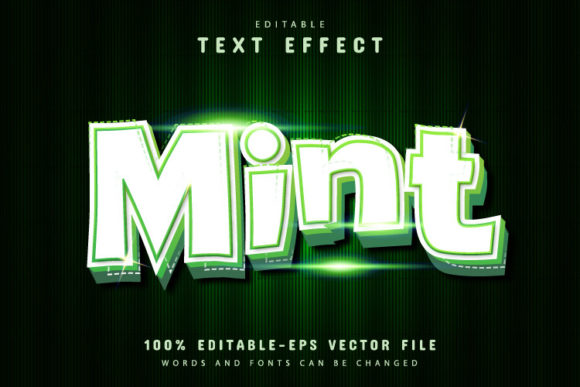
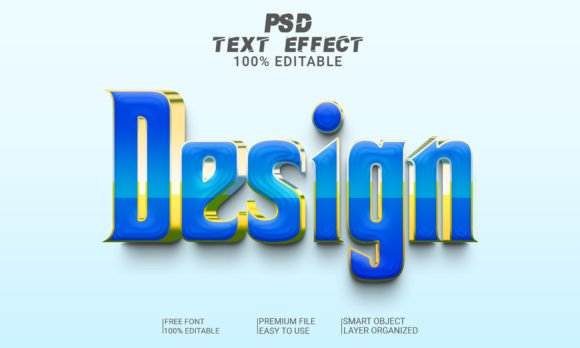
Branding projects can benefit from 3D treatments. Logos, emblems, and lettering can be transformed into striking 3D visuals, giving brands a modern and dynamic edge.
Strengths and Limitations of Using Adobe Illustrator for 3D
There are several advantages to using Adobe Illustrator for 3D design:
- Non-Destructive Editing: Because Illustrator works with vectors, you can always go back and adjust the original shape or style of your 3D object without losing quality.
- Seamless Integration with Other Adobe Tools: Illustrator plays well with Photoshop and InDesign, making it easy to incorporate your 3D elements into broader design workflows.
- User-Friendly Interface: Compared to dedicated 3D modeling software, Illustrator's 3D tools are much simpler to use, especially for beginners or those who don’t need full 3D rendering capabilities.
However, there are some limitations to consider:
- Illustrator’s 3D tools are not suitable for photorealistic 3D animation or game development.
- Complex organic shapes or detailed mesh modeling require more advanced software.
- Performance may slow down with highly detailed 3D objects due to the vector nature of the application.
Despite these constraints, many professionals find that the benefits far outweigh the drawbacks when working on specific design needs.
Getting Started: A Step-by-Step Guide to Creating a Simple 3D Object
If you're curious about using Adobe Illustrator to design 3D objects, here’s a basic workflow to get you started:
- Create a 2D Shape: Start with a simple vector shape, such as a rectangle or circle. This will serve as the base for your 3D object.
- Apply Extrusion: Select the shape and choose the "Extrude & Bevel" option under the 3D menu. Adjust the depth to give your shape a 3D feel.
- Set Lighting: Choose a light source and angle to highlight the 3D form. The default options usually work well, but experimenting with different settings can yield better results.
- Choose Materials: Assign colors or gradients to the front, side, and top faces of your 3D object to define its surface properties.
- Render and Refine: Click "Preview" to see how your object looks in 3D. If needed, tweak the settings until you’re satisfied with the outcome.
This process is straightforward and doesn’t require any prior 3D modeling experience. Once you understand the basics, you can start exploring more complex shapes and effects.
Who Can Benefit from Using Adobe Illustrator for 3D Design?
Several types of creators and professionals can take advantage of Illustrator’s 3D features:
- Graphic Designers: Those who create logos, posters, or branding materials can enhance their work with 3D effects to stand out in presentations or client proposals.
- Digital Artists: Vector artists looking to expand their portfolio with dimensional designs can learn how to use Adobe Illustrator to design 3D objects effectively.
- Web Developers: When working with UI elements, developers can use Illustrator to create 3D buttons or hover effects that are scalable and editable.
- Business Owners: Entrepreneurs seeking to create eye-catching marketing materials can utilize Illustrator’s 3D tools without hiring a specialist.
No matter your background, learning to design 3D objects in Illustrator can elevate your creative output and open up new opportunities for your business or personal projects.
Practical Expectations and Considerations
When deciding whether to use Adobe Illustrator for 3D design, it’s important to set realistic expectations:
Expect Simulated Depth: Illustrator’s 3D tools produce simulated 3D rather than true polygonal models. While this is great for stylistic and illustrative purposes, it won't allow for 360-degree rotations or animations like traditional 3D software.
Consider File Size and Performance: As you increase the complexity of your 3D objects, file sizes can grow significantly. This might affect performance, especially if you're working on large-scale projects with multiple elements.
Balance Creativity with Realism: The 3D tools in Illustrator are most effective when used creatively. Don’t expect them to replace high-end 3D modeling apps, but they can help you achieve stylized results that are both artistic and functional.
Case Study: Designing a 3D Logo in Adobe Illustrator
To illustrate the power of Illustrator’s 3D tools, let’s walk through a real-world example. Suppose you’re tasked with redesigning a company logo for a promotional item, such as a 3D printed keychain or a branded mug.
You begin by sketching the logo in 2D. Once satisfied with the layout, you select the main shape and apply the "Extrude & Bevel" effect. By adjusting the depth and choosing a metallic material, the logo gains a sleek, raised appearance. You then rotate the object to ensure it looks balanced and add shadows for realism. Finally, you export the design as a PNG or PDF for presentation to the client or manufacturer.
This example shows how using Adobe Illustrator to design 3D objects can streamline the design process while still delivering professional results.
Where to Learn More About Using Adobe Illustrator for 3D Design
If you're interested in mastering Illustrator’s 3D tools, online classes and tutorials are a great place to start. One such resource is a class taught by Laszlo, who walks students through the latest 3D functions and techniques. His course provides hands-on guidance on how to convert 2D vector shapes into compelling 3D designs.
Whether you're a beginner or an experienced designer, these classes offer valuable insights into how to leverage Illustrator’s evolving capabilities. You'll learn not just how to create 3D objects, but also how to integrate them into larger design projects with ease and confidence.
Evaluating Suitability for Your Projects
Before committing to using Adobe Illustrator to design 3D objects, ask yourself the following questions:
- Do I need a fully rendered 3D model for production or animation, or am I simply looking to add depth to a graphic?
- Am I comfortable working with vector graphics, and do I have access to Adobe Illustrator?
- Will the final output be used for print, web, or social media, where scalability is important?
If you answered “yes” to most of these, Illustrator’s 3D tools could be the perfect fit for your project. On the other hand, if you need complex geometry or motion, you might need to explore other software solutions.
Conclusion
Adobe Illustrator continues to evolve as a versatile design platform, and the introduction of 3D tools has made it possible to create stunning dimensional artwork directly within the application. While it may not replace dedicated 3D modeling software, it does provide an accessible and powerful way to bring your 2D designs to life.
By understanding how to use Adobe Illustrator to design 3D objects, you can unlock new creative potential and deliver impactful visuals for a wide range of uses. Whether you're designing for a client, your own brand, or just exploring your artistic skills, Illustrator’s 3D features are worth exploring.